A video demonstration of a simple Deadlock between two sessions (processes) in SQL Server and how you, as the DBA, can identify the two processes and the SQL statements in the Deadlock.
21 December, 2021

20 November, 2021
SQL Server Migration Assistant for Oracle
Here's a Video Demo of the SQL Server Migration Assistant for Oracle https://youtu.be/zNTF1ncr45g
The tool is available for download here
19 September, 2021
Restoring the Master Database
In my previous blog post, I've provided a link to a Microsoft Document on Restoring the Master Database.
Here's another method.
First, I find that my master.mdf file is corrupt when I try to start the Instance.
Message in the ERRORLOG file when I try to start the Instance, because the file is corrupt :
date-time (removed) Server  Configuration block version 0 is not a valid version number.
SQL Server is exiting.
Restore the master database or reinstall
I than look for a Backup of the master database and Restore it to *another* SQL Server Instance running exactly the same Release and Patch Level.
The Restore of the Backup is done with a *different* database name !! This is vitally important, as I don't want to attempt to overwrite master in the second SQL Server Instance.

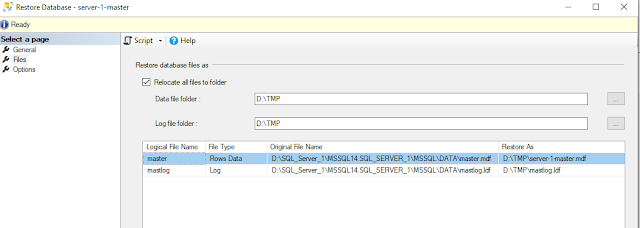
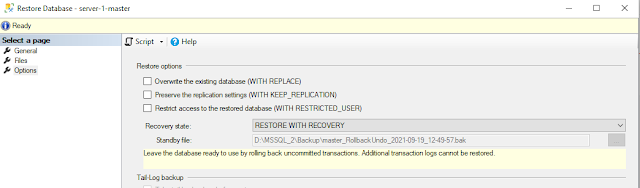

I then DETACH this Restored Database from the 2nd Instance
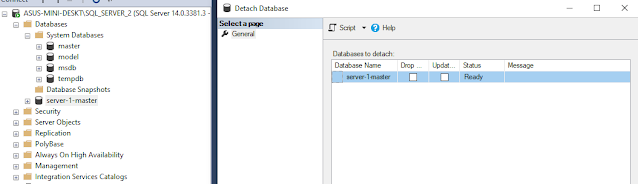
The Detached Database and Log file are now available to me (note the mdf file name)


I now attempt to start the SQL Server Instance that had failed and find that it is successful

And this is from the ERRORLOG now that shows that master database is good
2021-09-19 12:59:13.86 Server      Registry startup parameters:
	 -d D:\SQL_Server_1\MSSQL14.SQL_SERVER_1\MSSQL\DATA\master.mdf
	 -e D:\SQL_Server_1\MSSQL14.SQL_SERVER_1\MSSQL\Log\ERRORLOG
	 -l D:\SQL_Server_1\MSSQL14.SQL_SERVER_1\MSSQL\DATA\mastlog.ldf
2021-09-19 12:59:13.86 Server      Command Line Startup Parameters:
	 -s "SQL_SERVER_1"
2021-09-19 12:59:13.93 Server      SQL Server detected 1 sockets with 6 cores per socket and 12 logical processors per socket, 12 total logical processors; using 12 logical processors based on SQL Server licensing. This is an informational message; no user action is required.
2021-09-19 12:59:13.93 Server      SQL Server is starting at normal priority base (=7). This is an informational message only. No user action is required.
2021-09-19 12:59:13.95 Server      Detected 16234 MB of RAM. This is an informational message; no user action is required.
2021-09-19 12:59:13.95 Server      Using conventional memory in the memory manager.
2021-09-19 12:59:13.97 Server      Page exclusion bitmap is enabled.
2021-09-19 12:59:14.39 Server      Default collation: SQL_Latin1_General_CP1_CI_AS (us_english 1033)
2021-09-19 12:59:14.82 Server      Buffer pool extension is already disabled. No action is necessary.
2021-09-19 12:59:15.47 Server      InitializeExternalUserGroupSid failed. Implied authentication will be disabled.
2021-09-19 12:59:15.47 Server      Implied authentication manager initialization failed. Implied authentication will be disabled.
2021-09-19 12:59:15.81 Server      Query Store settings initialized with enabled = 1,
2021-09-19 12:59:15.88 Server      The maximum number of dedicated administrator connections for this instance is '1'
2021-09-19 12:59:15.95 Server      This instance of SQL Server last reported using a process ID of 5072 at 16/9/2021 9:13:05 PM (local) 16/9/2021 1:13:05 PM (UTC). This is an informational message only; no user action is required.
2021-09-19 12:59:16.09 Server      Node configuration: node 0: CPU mask: 0x0000000000000fff:0 Active CPU mask: 0x0000000000000fff:0. This message provides a description of the NUMA configuration for this computer. This is an informational message only. No user action is required.
2021-09-19 12:59:16.15 Server      Using dynamic lock allocation.  Initial allocation of 2500 Lock blocks and 5000 Lock Owner blocks per node.  This is an informational message only.  No user action is required.
2021-09-19 12:59:16.28 Server      In-Memory OLTP initialized on lowend machine.
2021-09-19 12:59:16.41 Server      CLR version v4.0.30319 loaded.
2021-09-19 12:59:16.46 Server      Database Instant File Initialization: disabled. For security and performance considerations see the topic 'Database Instant File Initialization' in SQL Server Books Online. This is an informational message only. No user action is required.
2021-09-19 12:59:16.66 Server      Common language runtime (CLR) functionality initialized using CLR version v4.0.30319 from C:\Windows\Microsoft.NET\Framework64\v4.0.30319\.
2021-09-19 12:59:16.71 Server      Software Usage Metrics is disabled.
2021-09-19 12:59:17.09 spid6s      Starting up database 'master'.
2021-09-19 12:59:18.94 spid6s      CHECKDB for database 'master' finished without errors on 2021-03-20 18:34:11.700 (local time). This is an informational message only; no user action is required.
Of course, any updates to master (e.g. new databases created in the instance) that were done after the backup are not available in the restored instance
The same method can be used for msdb as well. With msdb, when you restore msdb, you would lose any new jobs that were defined after the backup and also information about recent backups that were present in the corrupt msdb database.
15 September, 2021
Rebuilding System Databases
Here's a Microsoft Document on Rebuilding the System Databases
and one on Restoring the Master Database
21 March, 2021
The Resource Database in SQL Server
The "master" and "msdb" databases in a SQL Server installation are visible through SSMS.
However, every installation also includes a "Resource" database. This is a static database which is not directly accessed or accessible. It is installed into the SQL Server Version BINN folder and consists of both an "mdf" and "ldf" file. This is where the actual definitions of system objects are stored. This is the source database for definitions that "master" can read. And this is the actual database that is upgraded when you do a SQL Server upgrade and may also be bundled in a patch release.
So, if you filter my SQL Server Log for entries referring to this before and after the CU23 patch that I applied recently, I see :

Notice how the build version "14.00.2037" got updated to " 14.00.3381" when I applied CU23.
This Resource Database is how the "master" database update entries that I showed in my previous blog post are executed very quickly, most of them are links or hooks back to the Resource Database.
The Resource Database consists of the two files "mssqlsystemresource.mdf and mssqlsystemresource.ld" the SQL Server installed version "BINN" folder. If you copy them out and attempt to attach the copy as a database, using SSMS, you get this error :

with more details as :

This is the Microsoft Documentation on the Resource Database
When I run the queries shown in the Microsoft document, I get :

Do not attempt your own Backup/Restore of this database. But do ensure that your SQL Server Installation folder is backed up frequently, including after applying Service Packs and Cumulative Updates. You would need to refer to this backup (or such a backup from another server having the same SQL Server Version and Patch Level) if you ever need to restore this database.
19 March, 2021
Patching SQL Server
Starting with SQL Server 2017, Microsoft no longer releases Service Packs but only Cumulative Updates.
(I find this similar to Oracle releasing Release Updates, instead of Patch Set Updates, beginning with Oracle 12.2)
Refer to this page for the latest SQL Server Updates
This is the current SQLServer 2017 version I have on my desktop :


I then confirm the location to install the Update
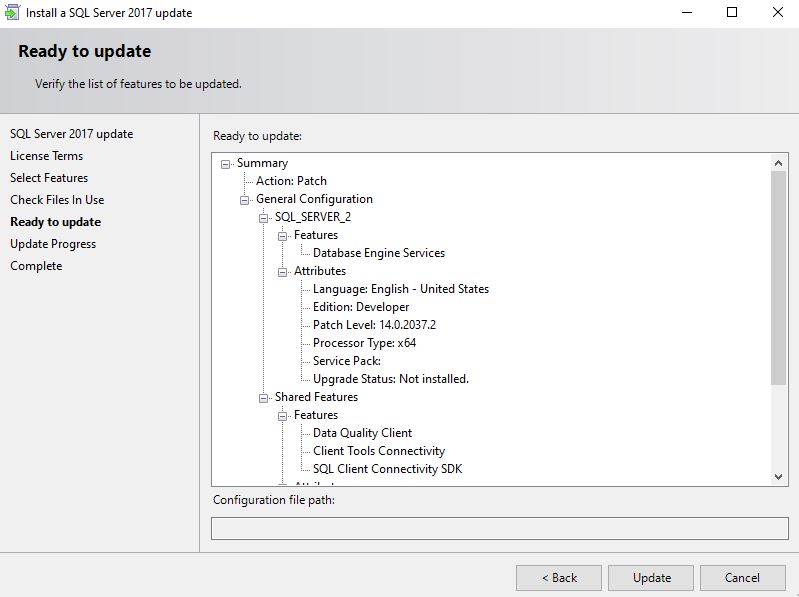
The installation proceeds and completes successfully


When I query for the version, I see the updated version -- CU23 has been applied

The truth is that SQL Server Patching *does do* a lot of SQL "Apply" actions. It is just that Microsoft does not ask you to run a separate datapatch command like Oracle. An Oracle Home can have multiple databases so the patch for binaries is applied only once but the datapatch command has to be run for each database. In the case of SQL Server all the databases in an Instance share common "master" and "msdb" database that are upgraded when you run the Patch Installer exe. After applying those changes, it restarts the instance.
So if you want to identify the SQL Apply actions, look at the Archive (#1 or even #2) depending on the number of restarts.
In my case Archive#1 has 2,530 lines of entries over 36seconds.
I just show some of those entries here to prove that applying a SQL Server Patch also may involve a number of SQL Actions :
Here are some entries (from the bottom up) from Archive #1 of the SQL Server Log :


(There are 255 "Dropping signature" commands here)


(about 30 "deprecated permissions")

(about70 "Creating ..." commands here)

Some interesting entries here below :


And the final set of messages before the instance is shutdown :

The next startup then is when the Patching utility releases the Instance for usage.
So, Microsoft SQL Server Patching does do a large number of changes to "master" and "msdb" and configurations. Do you go in and identify critical changes that need to be tested ?
12 March, 2021
Setting up Transparent Data Encryption
In a SQL Server instance you can choose to selectively configure TDE (Transparent Data Encryption) on target databases. So, it doesn't become necessary to have all the databases configured with TDE.
(Similarly, in Oracle you can selectively configure target tablespace(s).)
This is a quick walkthrough.
Step 1 : Create a Master Key, using a password that should be protected

Step 2 : Create a Certificate (it is automatically protected by the Master Key)

Step 3 : Create a Database Encryption Key for the Target Database
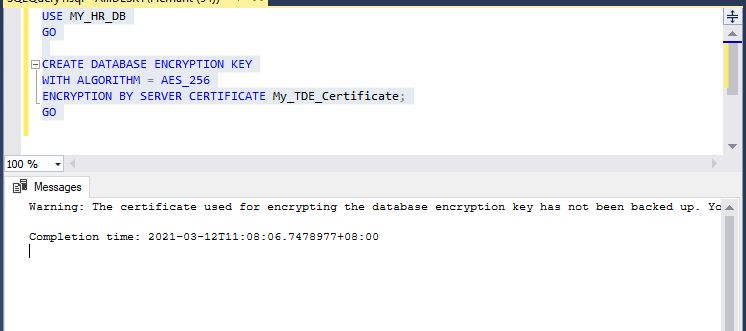
We shall backup the certificate soon.
Step 4: Turn on Database Encryption

Step 5 : List the Certificates that have been created

The first 7 Certificates are pre-populated by the Instance. The Certificate that I have created "My_TDE_Certificate" is listed as certificate_id=258 and encrypted by the Master Key
Step 6 : List the Encrypted Databases

This is the explanation of the EncryptionState :
0 = No database encryption key present, no encryption

1 = Unencrypted

2 = Encryption in progress

3 = Encrypted

4 = Key change in progress

5 = Decryption in progress

6 = Protection change in progress (The certificate or asymmetric key that is encrypting the database encryption key is being changed.)
You would see EncryptionState=3 only after some time for a large database as the "SET ENCRYPTION ON" takes time to run through the whole database.
Step 7 : Backup the Certificate


These two backup files (and the Password) must be protected -- e.g. by running backup to another safe device.
If you ever need to restore the database "MY_HR_DB" to another Server, you will need to configure the Master Key and create the Certificate on that server before you can restore the database :
USE MASTER
GO
CREATE MASTER KEY ENCRYPTION BY PASSWORD = 'My_123_Secret'
GO


CREATE CERTIFICATE My_TDE_Certificate
FROM FILE = 'D:\SS_Important_Backups\My_TDE_Certificate.cert'
WITH PRIVATE KEY (FILE = 'D:\SS_Important_Backups\My_TDE.key',
DECRYPTION BY PASSWORD 'My_123_Secret');
The database cannot be restored and read on another server unless the Master Key and Certificate are configured on the new server.
To disable (remove) Encryption you can run :
ALTER DATABASE MY_HR_DB SET ENCRYPTION OFF;
GO
/* Wait for decryption operation to complete, look for a value of 1 in the query below. */

SELECT encryption_state FROM sys.dm_database_encryption_keys;
GO

USE MY_HR_DB;
GO

DROP DATABASE ENCRYPTION KEY;
GO
Again, as with setting up Encryption, disabling it can take time to execute. Note that older backups of the Database and Transaction Logs would still remain in an Encrypted State.
This is the listing of all the commands in this post :
USE MASTER
CREATE MASTER KEY ENCRYPTION BY PASSWORD = 'My_123_Secret';

CREATE CERTIFICATE My_TDE_Certificate WITH SUBJECT= ' TDE_Configuration' ;

USE MY_HR_DB
GO

CREATE DATABASE ENCRYPTION KEY
WITH ALGORITHM = AES_256
ENCRYPTION BY SERVER CERTIFICATE My_TDE_Certificate;
GO


USE MASTER
GO

SELECT name, certificate_id, principal_id, pvt_key_encryption_type_desc, start_date, expiry_date
FROM sys.certificates;


SELECT
DB_NAME(database_id) AS DatabaseName
,Encryption_State AS EncryptionState
,key_algorithm AS Algorithm
,key_length AS KeyLength
FROM sys.dm_database_encryption_keys
GO


BACKUP CERTIFICATE My_TDE_Certificate
TO FILE = 'D:\SS_Important_Backups\My_TDE_Certificate.cert'
WITH PRIVATE KEY (file='D:\SS_Important_Backups\My_TDE.key',
ENCRYPTION BY PASSWORD = 'My_123_Secret')


USE MASTER
GO
CREATE MASTER KEY ENCRYPTION BY PASSWORD = 'My_123_Secret'
GO


CREATE CERTIFICATE My_TDE_Certificate
FROM FILE = 'D:\SS_Important_Backups\My_TDE_Certificate.cert'
WITH PRIVATE KEY (FILE = 'D:\SS_Important_Backups\My_TDE.key',
DECRYPTION BY PASSWORD 'My_123_Secret');


ALTER DATABASE MY_HR_DB SET ENCRYPTION OFF;
GO
/* Wait for decryption operation to complete, look for a value of 1 in the query below. */

SELECT encryption_state FROM sys.dm_database_encryption_keys;
GO

USE MY_HR_DB;
GO

DROP DATABASE ENCRYPTION KEY;
GO
As noted earlier, an Instance can have a mix of Encrypted (TDE) and Non-Encrypted Databases. TDE does "encryption at rest" -- meaning that the files on the OS layer (Database, Transaction Log and Backups of both) are encrypted.
25 January, 2021
Connecting On-Premises SQL Server to Oracle ADB (on the Oracle Cloud)
In my Oracle DBA blog, I had included two posts in October 2020 :
1. On-Premises SQL Server to Oracle ADB on the Cloud - 1 -- where I setup a connection from SQL Server to Oracle ADB using a Linked Server definition and an Oracle Client (configured with the Wallet for the Oracle Cloud
2. On-Premises SQL Server to Oracle ADB on the Cloud -- 2 -- where I copy data from SQL Server to Oracle ADB and then run a query across the two databases
Note : I used the Free-Tier Oracle Autonomous Database ("Oracle ADB"). So, there is on OS (Server) level access in the Oracle Cloud instance. Access to the databases uses a preconfigured Wallet -- all network traffic is encrypted.
01 November, 2020
Creating a Schema and not having to grant db_datareader and db_datawriter
It seems that using the default "dbo" as the owner of objects in the database is still an active practice. And it seems that some developers still default to granting "db_datareader" and "db_datawriter".
Here I show that it is not necessary to use "dbo" as the schema and certainly not necessary "db_datareader"and "db_datawriter".
Microsoft introduced the option to create a Schema (a collection of database objects) with a name other than "dbo" some versions ago.
Thus, the default schemas are visble as "dbo", "guest", "sys" and "INFORMATION_SCHEMA" in this database called "second_db" :


I can associate an existing SQL Login "hemant_sql" with the "inventory" schema in this database called "second_db" :

With that, the database user "hemant_sql" is created in "second_db". I can now grant privileges specifically on this new table without having granted "db_datareader" and "db_datawriter"

Note how the user does not have any roles :

The user can only view the target table and not any other table in the database :
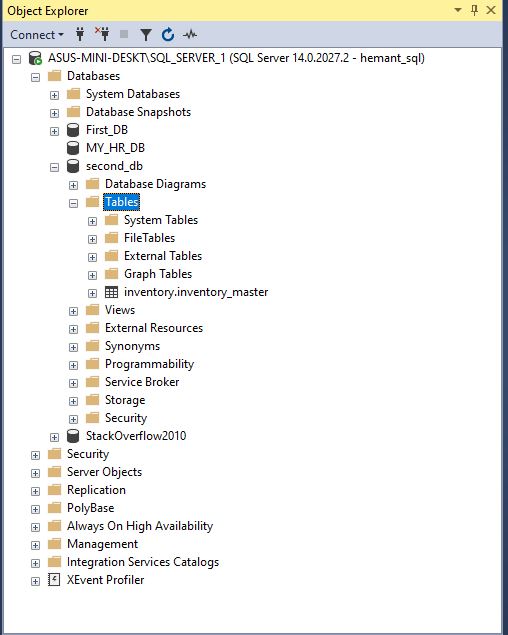
"hemant_sql" can now connect to the database and insert into the target table

Subscribe to:
Posts (Atom)